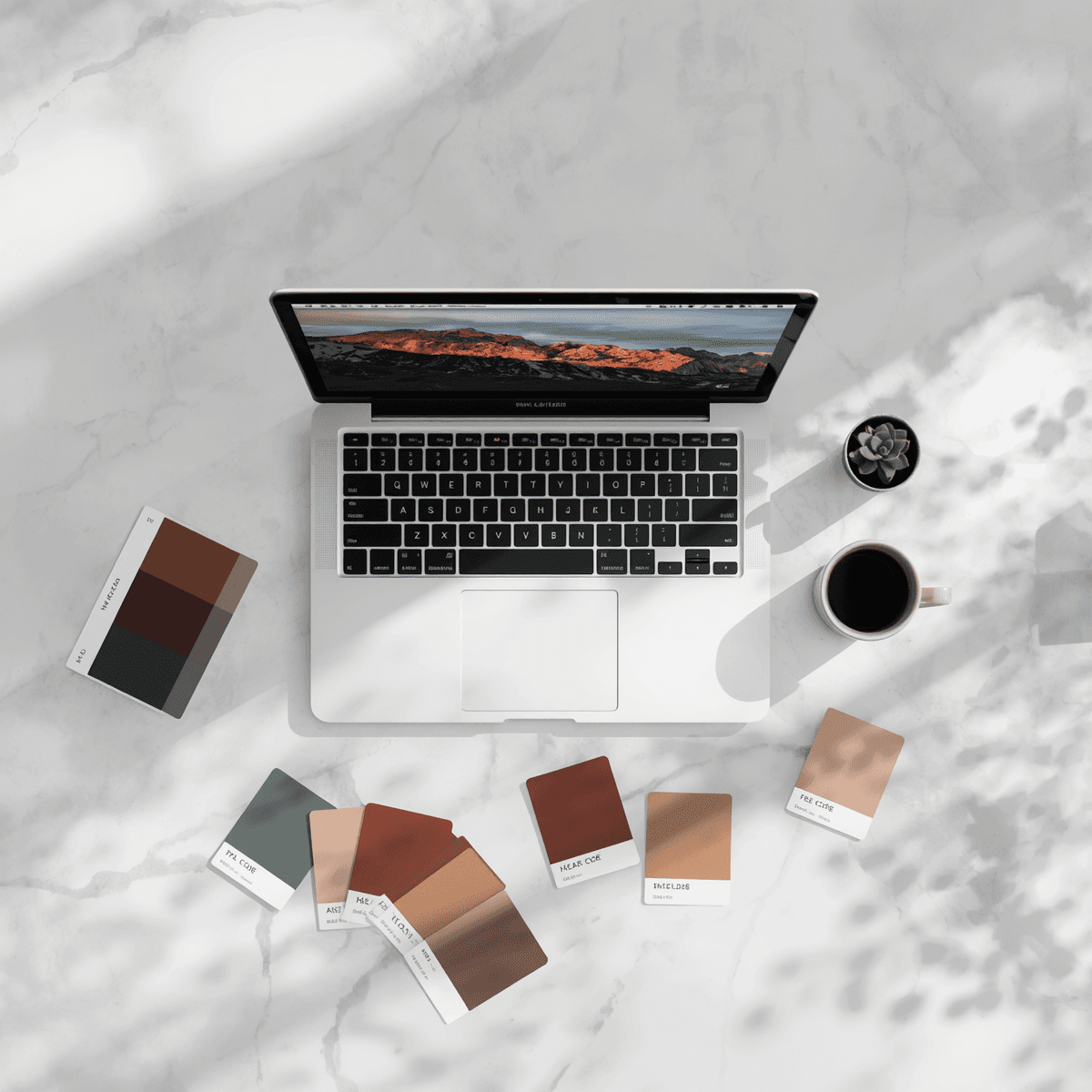
There is a specific kind of frustration that every designer knows. You find a photograph — a moody forest shot, a sun-drenched Moroccan alley, a perfectly styled flat lay — and the color story in that image is exactly what your project needs. But the colors are trapped inside the pixels. You can see them, feel them, but you cannot use them until you know their values.
That gap between "I love these colors" and "I can actually use these colors" is where most people lose time. Some try color-picking manually, sampling one hue at a time. Others eyeball it and end up with colors that are close but not quite right. Neither approach gives you a clean, usable palette from an image that you can immediately apply in Coloraccy, paste into Figma, or reference in CSS.
This tutorial walks through the complete process — from choosing the right source photo to exporting your final image to HEX colors — using Coloraccy's extraction tools. By the end, you will have a repeatable workflow that turns any inspiring image into a production-ready color palette.
Why Extracting a Palette from a Photo Works So Well
Color theory tells us that nature, photography, and well-composed images already contain harmonious color relationships. A photograph of a beach at golden hour has not been randomly colored — light physics and the real world have already done the work of creating a palette where the warm sand, the coral sky, and the deep blue water sit in natural balance. When you extract a palette from a photo, you are not inventing a color system. You are uncovering one that already exists.
Understanding the relationship between images and color systems is also foundational to broader color work — if you want to go deeper, the guide on color theory basics on Coloraccy covers the underlying principles that make extracted palettes work.
Step 1: Choose the Right Source Image
The quality of your extracted palette depends almost entirely on the quality of your source image. Not every photograph makes a good palette source, and knowing what to look for saves significant time.
What Makes a Good Source Image
Clear tonal range. A good source image has visible variation between light, mid, and dark tones. An image that is entirely high-key (very bright, low contrast) will produce a palette of near-whites and pale tones with little variation. An entirely dark image will do the opposite.
Distinct color areas. The extraction algorithm identifies dominant colors by analyzing pixel clusters. If your image has large, distinct areas of different colors — a blue sky, green foliage, warm earth tones — the extractor can identify them cleanly. Images with heavy gradients or extremely fine detail may produce averaged colors that feel muddier.
Emotional clarity. Ask yourself what mood the image carries. A misty mountain photograph and a sunlit citrus arrangement might both be beautiful, but they will produce fundamentally different palettes.
File Format and Resolution
Coloraccy's image color extractor works with standard image formats, including JPEG, PNG, and WebP. Higher resolution images give the extractor more pixel data to work with, which generally produces more accurate dominant color detection.
Step 2: Upload Your Image to Coloraccy's Extractor
Navigate to the image color extractor on Coloraccy. This tool is purpose-built for pulling dominant colors from photographs and converting them directly into usable HEX values.
The interface is straightforward. You can either upload an image file from your device or, in some cases, paste an image URL directly.
What the extractor identifies:
The tool analyzes the image and surfaces the most dominant colors — typically five to eight distinct hues that represent the image's overall color story. These are not all the colors present in the image.
Step 3: Review and Refine the Extracted Colors
Raw extraction results are a starting point, not a final answer. Spend time reviewing what the tool has surfaced before moving forward.
Questions to Ask at This Stage
Are the right colors represented? Take a look at the colors you have selected compared to your reference photo. Is there the very color that caught your attention from the picture, be it the dusty rose color or a deep teal color? If a certain color has been left out owing to its smaller area within the image, it might be better sampled manually.
Is there too much similarity between some swatches? The process can occasionally result in two or three colors that are similar in appearance, such as varying shades of beige on an image where neutral colors prevail. In case there is a similar pair in your palette, you may want to replace one of the colors with another unique one.
Manual Sampling With the Color Picker
For colors the extractor may have missed, the color picker allows precise manual sampling. If you know the specific area of the image you want to pull from — the exact tone of a shadow, the precise warmth of a highlight — the color picker gives you direct control over the value you capture.
Step 4: Convert Your Colors to HEX (and Other Formats)
Once you have your palette set, the next step is converting those colors into the format your workflow requires. Coloraccy surfaces HEX values by default, but depending on your project, you may need RGB, HSL, or another format.
The color format converter handles this in seconds. Paste in a HEX code and get the equivalent RGB, HSL, and other values instantly. This is particularly useful when:
Your CSS framework or design token system uses RGB or HSL variables
You need to pass color values into a JavaScript animation or canvas element
You are preparing colors for a developer handoff where multiple formats are required
For the image to HEX colors workflow specifically, the typical output is a set of five to eight HEX codes that you can immediately paste into Figma styles, CSS custom properties, or a brand guidelines document.
Step 5: Build Out Your Full Palette
Five to eight extracted colors is a solid foundation, but a production-ready palette usually needs more. Specifically, it needs shade and tint variations for each core color — lighter versions for backgrounds, darker versions for text and borders — and a clear designation of which colors serve which roles.
Generating Shade and Tint Scales
For each core extracted color, use the shade and tint generator to produce a scale. A typical scale runs from a very light tint (close to white) through the base color to a deep shade. This gives you nine or ten usable values per hue.
Identifying Complementary Colors
If your project needs colors that extend beyond what the source image contains — a strong accent color, an alert red, a success green — the complementary color finder can identify harmonious additions that work with your extracted palette without disrupting it.
Step 6: Save and Apply Your Palette
With your colors refined, scaled, and formatted, the final step is documenting them in a way that makes them easy to apply and share.
Exporting for Design Tools
HEX codes copy directly from Coloraccy into Figma, Sketch, Adobe XD, and any other design tool that accepts hex input. For team projects, creating a shared palette file or design token JSON keeps everyone working from the same color source.
Viewing Your Palette in Context
Before applying your palette to a real project, it is worth viewing it as a cohesive set. The palette showcase on Coloraccy lets you browse how curated palettes look assembled together, which gives you a useful reference point for evaluating whether your extracted palette has the visual balance you are looking for.
Real-World Use Cases for Image-Extracted Palettes
Brand identity from photography. A food brand wants its digital presence to match the warmth of its product photography. Instead of designing abstract brand colors, they extract a palette directly from their hero shots. The result is a visual identity that feels continuous with the product itself.
Interior design mood boards. A designer has a reference image of a room they want to recreate. Extracting the palette gives them exact paint color starting points, fabric tone references, and accent color directions — all from a single inspirational image.
Social media content design. An artist needs a coherent style in terms of visual presentation in both their Instagram grid and Pinterest boards. An artist can extract the color palette for three to four of his best photos in order to understand the colors that he has used in his work before.
UI theming from brand photography. The team working on the product is designing a dark-mode user interface for a lifestyle app. They have not created a generic dark color scheme but have rather extracted a scheme directly from the brand’s editorial imagery.
If this workflow appeals to you for Shopify or e-commerce projects specifically, the guide on Shopify color palettes walks through how image-extracted palettes translate into storefront design systems.
Common Mistakes to Avoid
Using a source image that is too busy. Highly detailed images with dozens of competing colors produce extraction results that are muddy and difficult to work with. Cleaner compositions give the extractor clearer data to work from.
Accepting the first extraction without refinement. The extracted colors are a starting point. Always review them against the source image and adjust manually where the algorithm has averaged or missed something important.
Skipping the contrast check. A palette that is created from an image with low contrast might not have adequate contrast range between its light and dark values to use for readable text. It is important to check whether your palette includes such combinations before making it final.
Over-extracting. More colors is not always better. A palette of twelve loosely related colors extracted from a complex image is harder to apply consistently than a tight set of five well-chosen ones. Edit for coherence.
Conclusion
Extracting a color palette from a photograph is one of the most intuitive ways to build a color system — because the harmony is already there, embedded in the image. The process is about revealing it clearly enough to use it.
Coloraccy makes every step of that process faster and more precise. The image color extractor pulls dominant colors instantly, the shade and tint generator builds out full scales, the color format converter prepares your values for any workflow, and the broader color palette library gives you endless reference and inspiration when you need it.
The next time an image stops you mid-scroll, you do not have to leave those colors behind. Head to coloraccy.com and bring them into your work.