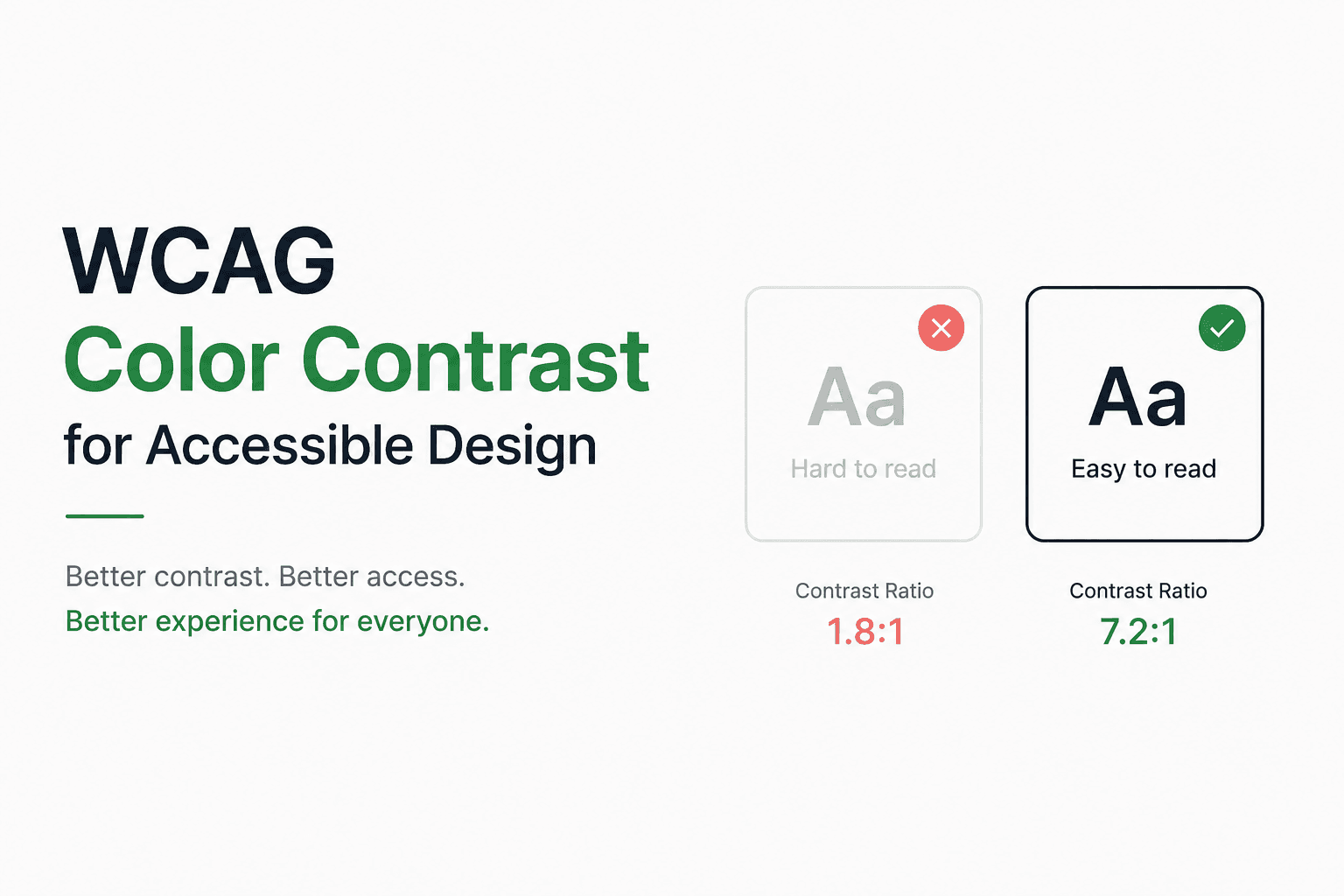
Imagine landing on a website where the light gray text sits on a white background. You squint, tilt your screen, and still struggle to read it. Now imagine that experience for someone with a visual impairment — or an aging user in bright sunlight on a mobile screen. This is not a hypothetical.
WCAG color contrast standards exist precisely to close that gap. Developed by the World Wide Web Consortium, the Web Content Accessibility Guidelines give designers and developers a measurable, testable framework for ensuring that text and visual content remain readable for the widest possible audience.
What Is WCAG and Why Does Color Contrast Matter?
The Web Content Accessibility Guidelines (WCAG) are an internationally recognized set of standards for making digital content accessible to people with disabilities. First published in 1999 and now in their 2.2 iteration.
Color contrast accessibility is one of the most measurable aspects of accessibility work. Unlike cognitive load or screen reader behavior, contrast is mathematical. It can be checked automatically, reported objectively, and corrected with precision. According to the World Health Organization, approximately 2.2 billion people globally live with some form of vision impairment.
Understanding the Contrast Ratio
Before diving into the specific WCAG levels, it helps to understand the underlying metric: the contrast ratio.
A contrast ratio expresses the luminance difference between two colors on a scale from 1:1 (identical colors, no contrast) to 21:1 (pure black on pure white, maximum contrast). Luminance here refers to relative luminance — a value calculated from the sRGB components of a color using a formula defined in the WCAG specification.
The formula accounts for the non-linear way human eyes perceive brightness. A mid-range gray, for instance, contributes less to perceived brightness than its raw channel values might suggest.
In practical terms:
1:1 — No contrast. Both colors are identical.
3:1 — Minimum threshold for large text and UI components.
4.5:1 — Minimum for standard body text at WCAG AA.
7:1 — Enhanced standard for small text at WCAG AAA.
21:1 — Maximum possible. Black on white.
WCAG AA vs AAA: What the Levels Require
WCAG organizes success criteria into three conformance levels — A, AA, and AAA — reflecting increasing degrees of accessibility. For color contrast, the relevant criteria live at the AA and AAA levels.
WCAG AA (Level AA) — The Standard Requirement
WCAG AA is the baseline that most accessibility laws and procurement standards reference, including the European Accessibility Act, Section 508 in the United States, and EN 301 549. Meeting AA is the practical goal for most public-facing digital products.
The AA contrast requirements for text are:
Normal text (under 18pt regular or under 14pt bold): minimum 4.5:1 contrast ratio
Large text (18pt and above regular, or 14pt and above bold): minimum 3:1 contrast ratio
Non-text UI components and graphical objects (icons, input borders, chart elements): minimum 3:1 against adjacent colors
WCAG AAA (Level AAA) — The Enhanced Standard
AAA represents a higher threshold, intended for contexts where accessibility is especially critical — government services, healthcare platforms, or products designed specifically for users with low vision.
The AAA requirements for text are:
Normal text: minimum 7:1 contrast ratio
Large text: minimum 4.5:1 contrast ratio
WCAG itself acknowledges that achieving AAA across an entire product may not always be possible, particularly for design-heavy contexts like marketing pages. A practical approach is to target AA universally and apply AAA where feasible — especially for small body text, captions, and fine-print elements.
What Is Exempt From Contrast Requirements?
Understanding what WCAG does not require is as important as knowing what it does.
The following are explicitly exempt from contrast criteria:
Decorative content with no informational value (background textures, purely aesthetic illustrations)
Inactive UI components such as disabled buttons or form fields
Logotype text — text that forms part of a brand logo or trademark
Incidental text in photographs or video that is not essential to the content
This gives designers meaningful creative freedom. A hero image with decorative text overlay, a disabled input field with reduced opacity, or a brand mark on a gradient background are not subject to contrast checks. The requirements apply to functional, informational content — what users actually need to read and interact with.
How to Test Color Contrast
Testing is where the guidelines move from theory to practice. Several reliable methods are available, each suited to different stages of the design process.
During Design (Before Development)
When working in Figma, Sketch, or Adobe XD, contrast checking should happen at the color selection stage. If you are building a palette from scratch, start with colors that have clearly sufficient contrast baked in — rather than retrofitting contrast compliance after the fact.
Coloraccy's color palette library is a useful resource here. Browsing curated palettes lets you evaluate tone relationships before committing to a direction, and it is much faster than generating colors blindly and checking them individually.
Automated Accessibility Audits
Tools like Axe, Lighthouse (built into Chrome DevTools), and WAVE scan live or staged web pages and flag contrast failures automatically. These are valuable for catching issues in production or during QA, but they should complement — not replace — manual testing during design.
Building an Accessible Color System From Scratch
The most efficient approach to WCAG compliance is not checking colors after the fact. It is building a color system where accessible pairings are the default.
Start With a Strong Base Palette
A good accessible color system begins with a well-structured palette that includes clear light, mid, and dark tones across each hue. The mid-tones are where most contrast failures occur — a medium blue on a white background often sits right at the borderline, while the same hue darkened by 15% passes comfortably.
If you are starting a new project, spending time on color theory basics before generating your palette pays dividends. Understanding how hue, saturation, and lightness interact helps you make contrast decisions more intuitively.
Generate Shade and Tint Scales
For each brand color, generate a scale of shades (darker variants) and tints (lighter variants). This gives you accessible alternatives within the same hue family — so you never have to abandon a brand color entirely just because its base value fails the contrast check.
The shade and tint generator on Coloraccy is built exactly for this. It produces a full lightness scale from any base color, making it straightforward to identify which tones will clear the 4.5:1 or 7:1 thresholds.
Pair Colors Systematically
Accessible color systems define which colors can be used together — not just what individual colors exist. A typography color that works on a white background may fail on a light gray card or a brand-colored section header. Document your approved pairings explicitly.
For complementary pairings that also clear contrast thresholds, the complementary color finder helps identify harmonious relationships that do not compromise readability.
Color Contrast in Practice: Real Design Scenarios
Body Text and Headings
The most common failure point. A dark charcoal on white passes easily. The problem arises when designers use medium-weight brand colors — a teal, coral, or olive — as heading colors on white backgrounds.
Placeholder and Secondary Text
Placeholder text in form fields and secondary labels is a frequent contrast failure. Designers often reduce opacity or use a lighter gray to signal hierarchy — but this drops the contrast ratio below the 4.5:1 threshold. Use a color that still feels subdued but passes the check. A concrete example: #767676 on white (#FFFFFF) produces exactly 4.54:1 — the absolute floor for AA compliance with small text.
Buttons and Interactive Elements
Button text must pass contrast against the button background, not the page background. A white-label button on a medium-blue background needs to clear 4.5:1 against that blue specifically.
When defining your brand's interactive components, the brand color kit tool helps you document and validate your full set of UI colors in one place.
Data Visualization and Charts
Charts, graphs, and infographics introduce a distinct challenge: adjacent colored segments that need to be distinguishable from each other and from the background. WCAG 1.4.11 (non-text contrast) requires a 3:1 ratio for graphical objects that convey meaning.
Accessible Design Does Not Mean Dull Design
A common misconception is that WCAG compliance forces designs into a conservative, low-saturation aesthetic. This is not true. Strong, vibrant colors — when paired thoughtfully — pass contrast checks with ease.
Exploring curated resources like aesthetic palettes, acrylic palettes, and African-inspired palettes on Coloraccy demonstrates how rich, expressive color systems can be built without sacrificing readability. Great accessible design is simply great design with an additional constraint — one that usually makes it more refined, not less.
Integrating WCAG Into Your Design Workflow
Accessibility works best when it is a process, not a final checklist. Here is a practical workflow integration:
At the brand definition stage: Use the color picker to explore primary and secondary brand colors, checking contrast as you go rather than after selection.
During palette building: Generate full tint/shade scales for every brand hue and document which tones pass AA and AAA for text use.
At the component design stage: Test every text-on-background combination in your component library, including hover and active states for interactive elements.
During design review: Include a contrast audit as a standard design review checklist item — alongside spacing, typography, and responsive behavior.
Pre-launch: Run an automated audit (Lighthouse or Axe) on key pages, then manually verify any flagged items.
When designing UI systems, the adaptive color system approach covered on the Coloraccy blog is particularly valuable — it walks through how to build palette structures that stay accessible across light and dark modes simultaneously.
Common WCAG Contrast Mistakes to Avoid
Relying on visual judgment alone. The human eye is poor at estimating contrast ratios precisely. Two colors that look clearly distinct can still fail 4.5:1. Always measure.
Testing only on one background. A text color that passes on white may fail on a light cream or off-white card. Test all meaningful background contexts.
Forgetting focus indicators. Keyboard focus outlines are subject to WCAG 2.2's focus appearance criteria, which include contrast requirements. Do not remove the default browser focus ring without providing a clearly visible, accessible alternative.
Treating accessibility as a final step. Retrofitting a finished design for contrast compliance is painful. When colors are already specified in brand guidelines, marketing assets, and code tokens, changing them creates cascading work. Build contrast awareness into the earliest stages.
Ignoring dark mode. A palette that passes in light mode does not automatically pass in dark mode. Dark backgrounds require a completely separate set of text color validations.
If your workflow involves generating palettes for clients or presentations, checking the free color palette generators for designers overview can help you identify which tools include built-in accessibility features.
WCAG 3.0 and the Future of Contrast Standards
WCAG 3.0 is currently in development and introduces a new contrast algorithm called APCA (Advanced Perceptual Contrast Algorithm). APCA is more nuanced than the current formula — it accounts for font weight.
WCAG 3.0 is not yet a finalized standard or a legal requirement in any jurisdiction, but forward-thinking teams are beginning to evaluate their palettes against APCA alongside WCAG 2.x. For now, AA compliance under WCAG 2.1 or 2.2 remains the appropriate and legally defensible standard.
Conclusion
WCAG color contrast compliance is not a bureaucratic hurdle — it is a design quality standard that makes your work more readable, more inclusive, and more professional for every user, not just those with disabilities. Understanding the difference between AA and AAA guidelines, and knowing how to generate and validate accessible shade scales.
Coloraccy provides every tool you need to make this practical rather than painful. From the palette showcase and image color extractor to detailed guides on brand color psychology, pastel palette generation, and Canva vs Procreate color comparison, the platform is built for designers who take color seriously.
Start building accessible, beautiful color systems today — exploreColoraccy's full suite of tools and make contrast compliance a natural part of how you design.